
Photo and Video Booth Software Features
One iPad app and one web platform for capture, printing, and delivery. It keeps running when the venue Wi-Fi goes down.



 A 30-minute call with a real person on the Curator team, built around how you run events.
Running events since December 2015. Events in 96 countries, with 24/7 support
Curator
Offline · 34 in queue · printing
What is Curator Live?
Curator Live is photo and video booth software for photo booth owners, venues, attractions and event teams. It runs on iPad and iPhone, captures photos, GIFs, boomerangs, video and 360 content from the device camera or a tethered DSLR, prints to professional dye-sublimation printers, and delivers to guests by text, email, AirDrop or QR code. The web platform behind it handles design, branding, event setup, staff permissions, guest data and analytics.
This page is the full inventory. Everything described below is in the product today.
What happens when the venue Wi-Fi dies
The event keeps running. Curator Live saves every capture to a persistent queue on the device, so the booth keeps shooting, keeps applying effects and keeps printing with no connection at all. Text and email delivery pause, then send themselves the moment the connection returns.
No internet needed
Keeps working
- Photo, GIF, boomerang and video capture
- Printing, including direct USB printing from the iPad
- Magic AI background removal, processed on the device
- AR backgrounds
- Green screen
- Live Connect transfer between two devices over local Wi-Fi
- Slideshow on a TV over HDMI, single or quad layout
Sends itself later
Waits for the connection
- Text and email delivery to guests
- Uploads to the online gallery
- AI FX renders, which are processed in the cloud
Nothing is lost and nobody has to remember to press anything. Sending a single photo once you are back online flushes the whole queue. A guest who scans their QR code before their photo has finished uploading lands on a Notify Me page, leaves a phone number or email, and is messaged automatically the second the photo is ready.
Important: leave the app open while the queue is sending. Closing the app or switching events before the queue clears deletes whatever is still in it.
Experiences
An experience is one capture flow behind one branded on-screen button. An event can present up to six of them, and up to nine with the additional-experiences permission enabled.
Photo
Single or multi-photo capture. The route we suggest for photo strips as well as single frames.
GIF
Multi-frame animated capture, with frame count and playback speed set per event.
Boomerang
A short loop that plays forwards and then back, with duration and speed set per event.
Video
Straight video capture with template, soundtrack, pre-roll, post-roll and mirror control.
CustomFX
A real timeline editor: layered clips, transitions, crops, opacity, overlays, layered audio, and transparent HEVC video that sits in front of and behind the subject.
AI FX
The guest picks a look, takes one photo, and gets a fully re-rendered image back in around seven seconds.
360
Device mode for spinning platforms. CustomFX is the experience we suggest behind it.
Photography
DSLR photographer workflow, up to six photographer experiences, each with its own landscape and portrait watermark.
The backdrop
- Magic AI background removal, on-device
- Physical green screen chroma key
- AR background mode on every experience
- Searchable background library
- Image or video backgrounds
On the frame
- Digital props tracked to face and body
- Capture filters
- Event-wide overlays, with an opt-out on any one experience
- Draw on photo before sharing
- Up to 4 layouts per experience
Starting a session
- Hands-free start: hold a pose, no tapping
- Bluetooth shutter trigger
- Per-event ready and countdown timers
- Look Here graphic
- Live camera view on the attract screen
Specials
- Video guest book, confessional style with external audio
- AI IRIS close-up eye portraits
- Attract screens for booth and sharing station
- Retake and delete controls for guests
- Capture-only mode with no sharing screen
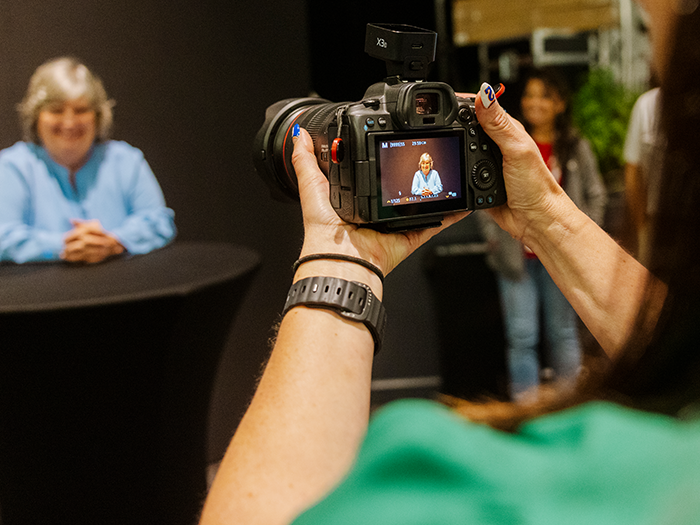
Shoot it with the camera you already own
Curator Live tethers to a DSLR or mirrorless body over USB and drives it from inside the app. The supported list runs to around 130 bodies.
Canon EOS DSLR and mirrorless bodies
Nikon DSLR and mirrorless bodies
Olympus and OM System bodies
Sony Alpha bodies
Also the iPad and iPhone camera, and GoPro over a wireless connection
Tethered capture requires iOS 18 or later. Full model list in the help center.
Camera control
- ISO, shutter, aperture and white balance from inside the app
- Separate settings for live view and for capture
- Live view portrait, live view landscape, or the iPad camera
- Published starting points for constant light and for flash
Lighting
- Up to 8 Lume Cube 2.0 flashes, with live battery and signal
- Bluetooth LED strip control, SP105, SP107 and SP110
- Lighting that changes per screen: attract, countdown, capture
- Mobibooth Aura, Cruise and Cruise Mini shells
- MobileMax lighting
Motion
- OrcaVue 360 motorized platforms
- GlamBot robotic camera arms
- Start, stop, rotation speed and capture sync from the app
- No iOS Bluetooth pairing to do: it is handled in Curator
Roaming and audio
- Roaming kit: a DSLR and an iPhone on a bracket
- Published, tested bracket, cable and hub list
- Audio guest book through a DSLR
- Bluetooth lapel microphones
Printing, in depth
Direct USB printing sends a photo from the iPad straight down one cable into a dye-sublimation printer, with no computer and no print server in between. Curator Live shipped it on 22 July 2026.
iPad → printer
Direct USB printing
- One cable, zero configuration. The event settings tell the printer what to do
- Every print size supported
- Multiple copies batched natively by the printer
- USB-hub friendly, so the iPad charges and a DSLR stays connected
- Tested to 15 ft cable runs
Requires an M-series iPad (iPad Pro M1–M4, iPad Air M1–M3), iPadOS 18 or later, and Curator Live 1.1.47 or later.
iPad → computer → printer
Curator Print Server V2
- Free Mac and Windows app that turns a printer attached to that computer into a Curator printer
- Auto-detected: nothing to configure in the app
- Four connection methods: local Wi-Fi, iPad-to-computer USB tether, Ethernet, or cloud
- Cloud Sync prints from the cloud with no iPad connected at all: remote printing, reprints, and yesterday’s event
- Setup & Health tab diagnoses network profile, firewall and Ethernet in one place
Supported printers
Direct USB DNP DS-RX1 / DS-RX1HS, DS620A, DS820A, QW410, DS40 and DS80; Citizen CX-02, CX-02W, CW-01, CW-02 (OP900II) and CZ-01; Mitsubishi CP-D70DW and CP-D707DW; Sinfonia CS2 and CS3; SwiftFoto KSF-10R; HiTi P525L
Print Server runs on a Mac or Windows machine for setups that need it
AirPrint supported, including through the DNP WCM Plus, AirCast Pro, Printio and Airkonv bridges
Sinfonia printers currently run on Print Server V1, which we keep maintained for exactly that reason. Curator publishes a driver hub with official links for every supported brand.
Sizes
- Up to 8 print sizes in a single event
- 2×6 strips and 6×4 prints running side by side
- 2-inch cut and cut-middle for strips
- Auto-rotate to portrait or landscape per printer
Jumbo strips
- 6×14 and 6×20 on a DS620A or CX-02, 6×8 media
- 8×22 and 8×32 on a DS820A or CX-02W, 8×12 media
- Printed as panels on one continuous strip
- Ready-made template event supplied
Controls
- Auto Print a set number of copies of every capture
- A cap on how many prints one guest can pull
- Choose which experiences are allowed to print
- Print AI FX images, synced back to the device
Split routing
- Print on the printer network while delivering over cellular
- Both at the same time, on one iPad
- Published iOS configuration for it
- Solves the venue that gives you a printer network and no internet
Ten ways to get a photo to a guest
Text and email sending is built into every account. There is no separate messaging account to set up before your first event. Fair usage applies, and you can bring your own Twilio account if you would rather run your own numbers.
To the phone
- Text (SMS) delivery, built in
- MMS thumbnail attached to the text
- Email delivery, for larger files
- Photo or MP4 attached to the email
- AirDrop to nearby Apple devices
By QR code
- QR to the full event gallery
- Personal QR straight to the guest’s own media
- Notify Me for media that has not uploaded yet
- Guests scan a code and register before their turn
- Printed QR access cards for parks and multi-station setups
On a screen
- Live slideshow in a browser over HDMI: no software to install
- Slideshow for Curator on Apple TV
- Offline slideshow driven by a second iOS device
- Single or quad layout
- Branded public gallery microsite
At scale
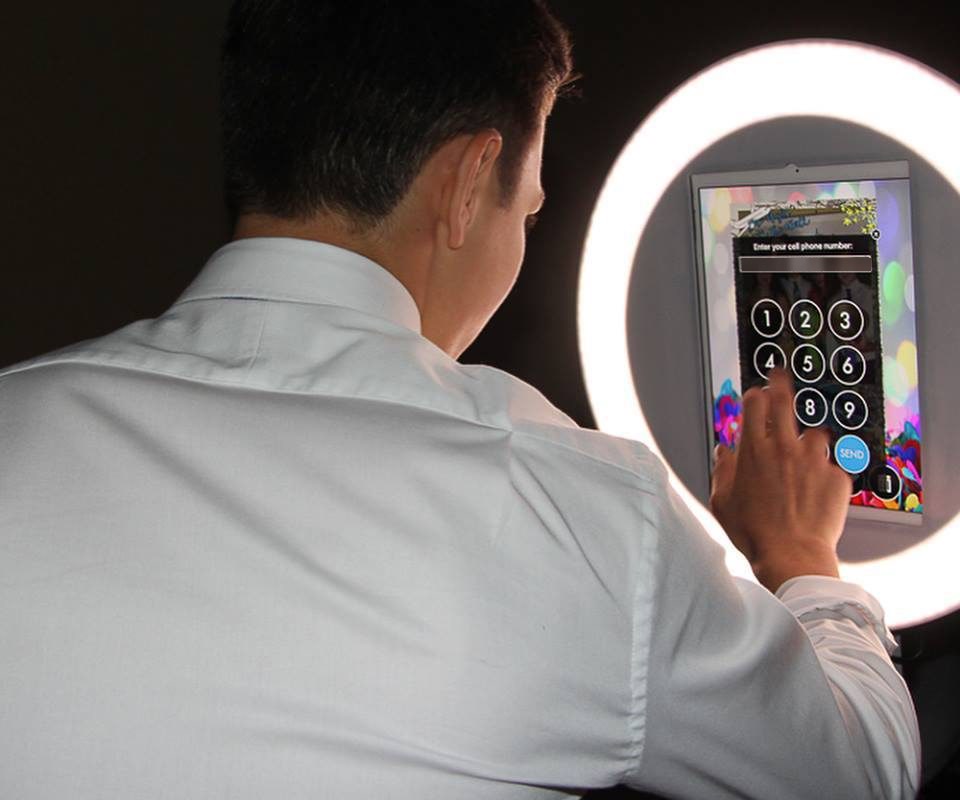
- Sharing Station: a second iPad as a dedicated send kiosk
- Live Connect transfer from one device to another over local Wi-Fi
- RFID wristband and tag scanning
- Send a collection rather than a single photo
- Click tracking on every delivered link
Photo Match
Photo Match lets a guest pull their own shots out of a gallery of two thousand instead of scrolling all of it. The guest asks for their own photos. An operator switches it on per event, and the face data it uses is deleted on the same two-year schedule as the photos.
- Works in every mode, including photography, 360 and AI experiences
- Three sensitivity levels
- The gallery search button can be renamed to whatever suits the event
- Turn the public gallery off entirely and guests can still search for and see their own photos, and nothing else
- Groups delivery notifications so a guest gets one message rather than nine
- Available on Agency Pro and Enterprise plans
Charge guests for their own photos
Turn sales on for an event and guests buy their photos from the gallery. Connect your Stripe account once, set what a photo costs, and the booth takes the money without a till, a card reader or anybody standing next to it.
Pay before the shot
A kiosk takes the payment and then runs the session. It suits a self-serve capture point where nobody is there to handle money, and it settles the transaction before the guest is in front of the camera.
Pay after the shot
The other way round: capture first, show the guest their photo with a sales watermark on it, and take the payment to lift it. Somebody who has seen the picture is deciding about a photo rather than an idea.
Into your own account
Sales run through a Stripe account you connect and own, so the payout arrives in your account. Currency is chosen per event, so an operation that works across regions charges in the right one.
Pricing set an all-photos price, a per-photo price, or both. Each is switched on separately.
Watermark unpurchased photos carry a sales watermark. It comes off on purchase.
Collections built automatically by a rule you choose, including Photo Match, so a guest buys their own pictures rather than the whole event.
Live Photo Collections photos taken after a guest has paid are added to the gallery they already bought, at no extra charge. Switch it off and each new set is its own purchase.
Confirmation the message a guest sees after paying is yours to write.
Access managing sales is its own permission, so it can be handed to somebody without handing over the account.
Sales are configured per event, so a paid capture point and a free one can run on the same account in the same week.
What it looks like on the day
Four ways operators run Curator at real events: one cable, a kiosk, a tethered DSLR, a sharing station.
One cable
An iPad running direct USB printing into a photo printer.
Kiosk
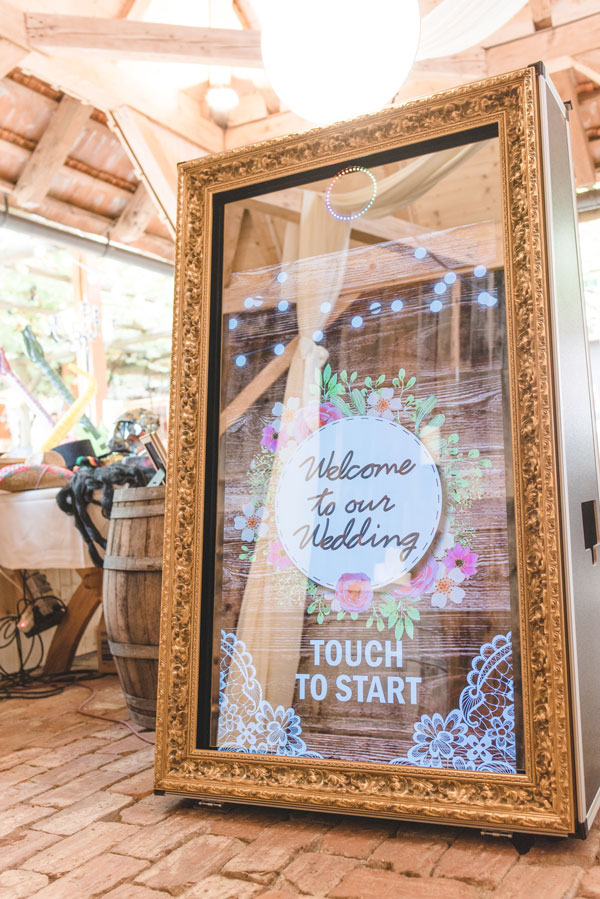
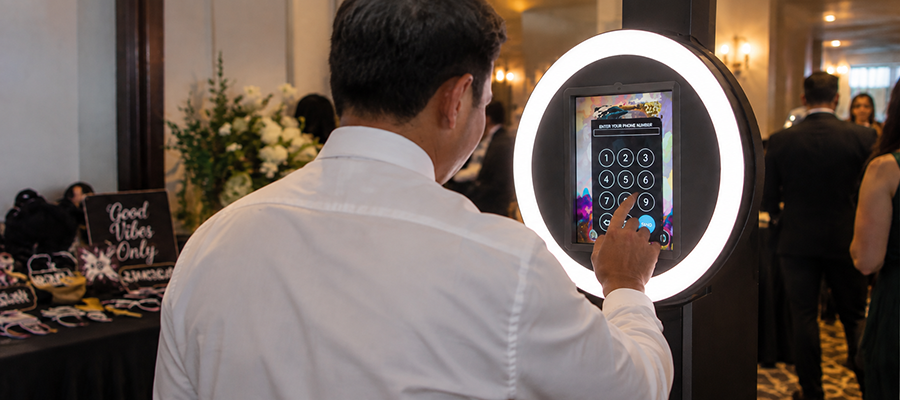
A permanent install running in kiosk mode with nobody standing next to it.
Tethered
A DSLR tethered to the iPad, with the operator adjusting exposure in the app.
Sharing station
A second iPad set up away from the booth so guests can send their photos.
Design tools, in the browser
The Curator Live Image Editor is a full design tool inside the platform, so an overlay, a layout or a prop set can be built and changed without opening Photoshop.
In the editor
- Built-in QR code generator
- Curve text, letter spacing, blur, shadow and stroke
- Uploadable custom fonts
- Customizable SVG icons
- Searchable background library
- Flip, mask, crop and remove background
Layouts
- Up to 30 photo boxes per layout
- Numeric X, Y, width, height and rotation for every box
- Per-box photo numbering
- Allow Video on a box for animated frames
- Upload a finished PNG and drop photo boxes onto it
Overlays and props
- Cutouts that become the transparent photo area
- Apply event-wide or per experience
- Digital props designer with facial placement guides
- Prop placement and selector icon in one tool
Start from a template
- Curator layout template gallery
- Curator overlay template gallery
- PNG and PSD starter packs to download
- Canva templates at exact Curator dimensions
- An asset library held on the account and reused across every event
White-label and microsites
White-labelling puts your business, rather than your software vendor, on the parts of the experience a guest touches: the delivery link domain, the address the email comes from, the icon on the iPad home screen, and every on-screen and in-photo asset.
Your domain
- Vanity URL: deliver guest links from your own domain
- One URL across all your events, or several per account
- Delivery email sent from your own domain
- DNS records published, verified automatically
Your buttons
- All eight share buttons replaceable: photo, back, done, SMS, email, delete, print, AirDrop
- Animated experience buttons in APNG
- Animated attract and experience screens, MP4 or MOV
- Animated overlays in HEVC with transparency
Your sharing page
- Ten built-in page designs
- Banner and link, color scheme, CTA button, custom meta tags
- Rewrite the email and SMS copy the guest receives
- Custom email footer text
- Gallery column count and display options
Go further
- V2 microsites: upload your own coded template as a ZIP
- Photo and gallery templates, with bundled CSS, JS, fonts and images
- Custom app icon and business name on the iPad home screen
- Landscape and portrait watermarks for each photographer
Permanent installs and booths nobody is standing next to
Unattended operation means an iPad that can be left in a venue, locked to one event, run by staff who have no access to your Curator account, and recovered without a site visit. Curator Live has a stack of controls for exactly that.
Kiosk Mode
The operator types an event code and nothing else. No email, no password, no route into your account. The app locks the iPad to that one event and starts the experience.
Event code login
A per-event code you send to whoever is running the booth. They enter it, the right event loads, and your credentials stay yours.
Event PIN
A four-digit code locking the in-app settings, so guests and junior staff cannot wander into the backend mid-event. Set one; the default is open.
Booth closed mode
Pause with a full-screen message you write yourself, without quitting the event or the app. Editable resume time, and it comes straight back.
Guided Access
Apple’s built-in single-app lock, set up in three steps. Free, manual, and enough for a lot of installs.
MDM auto-lock
With an MDM that supports Autonomous Single App Mode, the iPad locks itself into Curator when an event starts and unlocks when it ends. Tested with SimpleMDM and Jamf.
Venue Settings hold account-level defaults for multi-venue operators: name, calling code, timezone, landing and gallery pages, and Photo Match limits. For permanent installs, Curator publishes a specific recommendation to turn Save Images to Queue off so files clear from the device once uploaded.
Eleven roles, so nobody gets more access than they need
A role is a named set of permissions you assign to a person. Curator Live ships eleven of them, including two built for contract designers, plus event-scoped roles for staff who should see one event and nothing else.
Account-wide
Six full-account roles
- Owner: one per account
- Administrator
- Account Manager: everything except Tools
- Account Designer: built for freelance designers, with no Tools, Sales, Devices, Marketing or Archive
- Asset Contributor: uploads assets and nothing else
- Marketing: marketing, plus view-only assets
Scoped to assigned events
Five sub-user roles
- Events User: view
- Events Operator: edit and duplicate
- Events Manager: edit, duplicate, and reach the guest data
- Device User
- Device Operator
The Events Operator / Events Manager line is precisely the guest-data boundary. Preview a person’s exact access while you are adding them, assign specific staff to specific events, and grant outside vendors event-scoped access without adding them to your account.
Analytics, guest data and privacy controls
Every event collects the email addresses and phone numbers guests give you for delivery, reports on what happened afterwards, and gives you the switches to hold less of it than that when a client requires it.
Analytics
- Eleven metrics per event, with date-range filtering
- Total photos, total views, impressions, page and source views
- Photo types, data capture, shares and popular photos
- A client-facing report page with its own password
- Your own Google Analytics ID or Meta Pixel on the guest gallery
Capture the data
- Survey mode: a full lead form in the guest flow
- First name, last name, opt-ins, birthdays, regions, age
- Custom questions, up to 8 additional fields
- Answers sit beside each guest’s photos
- Consent gate shown before anything is collected
Get it out
- Event data exported to Excel
- Search, column selection and row filtering before export
- Bulk photo and video download as a ZIP, emailed as a link
- Under 1 GB in 1–10 minutes, up to 10 GB within 30
- Download link valid for 7 days
Hold less of it
- Anonymize: auto-delete each guest’s email and phone after delivery
- Put a password on the public gallery
- Turn the public gallery off entirely
- Media stays live 365 days from the last capture, then moves to an archive you can still reach
- Manual archive and delete at any point
Trade-off: once a guest’s details are deleted, you cannot resend to them, and the data is gone from analytics and marketing too. Archiving an event breaks the guest links already sent. Curator publishes GDPR guidance, but the legal responsibility for an event sits with its organizer and we do not give legal advice.
Connect it to what you already run
An integration is a link between Curator Live and a system you already use, configured once in Tools and then left alone.
Dropbox every photo copied into your own Dropbox as the event runs. Link it before the event; there is no retroactive backup.
Storage keep event media in your own Google Cloud Storage or AWS S3 bucket rather than ours.
Twilio route text and MMS through your own account, for your own numbers, logs and billing.
Stripe connect your own Stripe account.
Picture Mosaics every photo pushes live into a mosaic project, building on screen while the booth runs.
Drone booth the Picture Mosaics 360 drone flies a circle, Curator takes the video and applies the CustomFX timeline.
BoothMotion pull BoothMotion content downloads into Curator.
CaptureLife account-level delivery integration for professional photography.
Desktop app the Curator Live Uploader and Downloader watches a folder on Mac or Windows, uploads into an event, including for AI processing, and brings the results back. This is the bridge from tethered DSLR shooting into AI and out again.
API issue an API key and wire Curator into your own systems: branded apps, a CRM, a live campaign dashboard. Enterprise, handled case by case.
Set up the next one in minutes
Most of what an operator does happens away from the booth. These are the parts that decide whether your next event takes five minutes or an hour.
Events
- Save a configured event as a reusable template
- Duplicate an event rather than rebuilding it
- Edit branding, experiences, data capture and delivery after purchase. The dates are what lock
- Organize events into categories
- Run several events at once, license permitting
Devices
- Name each iPad and see them all in one list
- Check each device’s storage from the website
- Event Health panel: printer, upload queue, camera, storage
- Network speed test inside the app
- Separate views for what is on the device and what is still queued
Licenses
- One device license included with every plan and every single-event purchase
- Capture device, sharing station and slideshow license types
- Unassign and reassign yourself, in Tools
- Unlimited event activations on monthly and yearly plans
Test it first
- Rehearse any event end to end before paying for it
- Unpaid events carry a demo watermark, so you always know which state you are in
- On a Standard subscription, tick one box to run a single event with Pro features
- Per-event activations run three days, so you can start a day early and finish a day late
Turn one event into the next booking
A post-event SMS campaign texts every guest who left a phone number. Send a thank you, a discount, or a nudge to book you themselves. Curator embeds each guest’s own last photo in their message, so they see the thing they remember rather than an advert from a stranger.
- Send now or schedule for later
- Curator charges nothing per message
- Requires your own Twilio account and a vanity URL already used on the event
- One-way: guests cannot reply
- Published carrier-compliance guidance, including what content is prohibited
Carrier rules ban alcohol content in marketing text messages. Plan wedding and bar campaigns around that.
Someone is awake when your event is
Live chat is staffed 24 hours a day, every day of the year. There is an emergency phone line for when chat is not fast enough. If the team is on another call, you get a callback. It is a hotline, not a ticket queue.
Events happen at 9pm on a Saturday, not Tuesday morning. That is when the team is there.
Feature FAQ
Does Curator work without an internet connection?
Yes. Photos capture to a persistent queue on the device, printing continues, and the booth behaves exactly as it does online. On-device AI background removal, AR backgrounds and green screen all keep working with no connection. Text and email delivery pause and send automatically once the connection returns. Leave the app open while the queue is sending. Closing it before the queue clears discards what is still in it.
Can I print from an iPad without a print server?
Yes. Direct USB printing sends photos from the iPad straight down one cable to a dye-sublimation printer, with no computer and no print server. It works with DNP, Citizen, Mitsubishi, Sinfonia, SwiftFoto and HiTi dye-sublimation printers, and needs an M-series iPad, iPadOS 18 or later, and Curator Live 1.1.47 or later. The free Curator Print Server also runs on a Mac or Windows machine for setups that need it.
Which printers does Curator support?
Direct USB printing supports the DNP DS-RX1 / DS-RX1HS, DS620A, DS820A, QW410, DS40 and DS80; the Citizen CX-02, CX-02W, CW-01, CW-02 (OP900II) and CZ-01; the Mitsubishi CP-D70DW and CP-D707DW; the Sinfonia CS2 and CS3; the SwiftFoto KSF-10R; and the HiTi P525L: seventeen models across six brands. AirPrint is supported too, including through the DNP WCM Plus, AirCast Pro, Printio and Airkonv bridges.
What print sizes can Curator produce?
Up to eight print sizes in a single event, so 2×6 strips and 6×4 prints can run side by side. Jumbo photo strips are also supported over direct USB: 6×14 and 6×20 on a DS620A or CX-02 with 6×8 media, and 8×22 and 8×32 on a DS820A or CX-02W with 8×12 media, printed as panels on one continuous strip.
Which cameras does Curator work with?
Around 130 DSLR and mirrorless bodies across Canon EOS, Nikon, Olympus and OM System, and Sony, tethered over USB and driven from inside the app: ISO, shutter, aperture and white balance, with separate settings for live view and capture. GoPro connects wirelessly, and the iPad and iPhone cameras work on their own.
Can I run a booth with nobody standing next to it?
Yes. Kiosk Mode locks an iPad to one event, launched with an event code and no account credentials. An event PIN keeps guests and junior staff out of the in-app settings, booth closed mode pauses the booth with a message you write, and an MDM that supports Autonomous Single App Mode will lock the iPad into Curator when an event starts and unlock it when it ends. SimpleMDM and Jamf are both tested.
How do guests find their own photos in a big gallery?
Photo Match lets a guest pull their own shots out of a large gallery instead of scrolling all of it. The guest asks for their own photos. An operator switches it on per event, and the face data it uses is deleted on the same two-year schedule as the photos. It is on Agency Pro and Enterprise plans. You can also turn the public gallery off entirely and guests can still search for and see their own photos, and nothing else.
Can I put my own branding on it?
Yes. Deliver links from your own domain, send delivery email from your own domain, put your logo and business name on the iPad home-screen icon, and replace every on-screen and in-photo asset: overlays, backgrounds, attract screens, and all eight share buttons. Sharing pages can use one of ten built-in designs, or a fully custom-coded template you upload as a ZIP.
Can I give staff access without giving them my account?
Yes. Curator Live has eleven roles. Six are account-wide, including an Account Designer role built for freelance designers and an Asset Contributor role that can upload assets and nothing else. Five are sub-user roles scoped to the events you assign them. You can preview someone’s exact access while you add them, and give outside vendors event-scoped access without adding them to your account.
What happens to guest data after the event?
Media stays live for 365 days from the last capture, then moves to an archive your account can still reach, and you can archive or delete manually at any point. Per event you can anonymize, which automatically deletes each guest’s email and phone shortly after delivery, password-protect the gallery, or turn the public gallery off. Anonymizing means you cannot resend, and the data is unavailable for analytics or marketing.
Can I export everything for a client?
Yes. Captured guest data exports to Excel with search, column selection and row filtering first. All event media downloads as a ZIP, delivered as an emailed link: under 1 GB usually arrives in 1 to 10 minutes, up to 10 GB within 30, and the link stays valid for 7 days.
What support do I get?
Live chat staffed 24 hours a day, every day of the year, plus an emergency phone line for when chat is not fast enough. If the team is on another call you get a callback rather than a ticket.
Can I sell photos to guests?
Yes. Turn sales on for an event and guests buy their own photos from the gallery. You can set an all-photos price, a per-photo price, or both, and the currency is chosen per event. Guests can pay at a kiosk before the session runs, or pay afterwards to lift the sales watermark from a photo they have already seen. The money runs through a Stripe account you connect and own.
What stops a guest saving a photo they have not paid for?
A sales watermark sits on every unpurchased photo and lifts on purchase. Collections are built automatically by a rule you choose, including Photo Match, so a guest is buying their own pictures rather than the whole event. Photos taken after they have paid are added to the gallery they already bought at no extra charge, unless you switch Live Photo Collections off and charge for each new set.
See the whole platform
Book a demo and we will walk it through against the way you actually run events: your printers, your venues, your team.